
How to Deactivate Facebook on iPhone: Simple & Quick Steps
Read Time:7 Minute, 47 Second
Facebook has become an essential part of our daily lives, but sometimes it’s necessary to take a step back. Whether you’re looking for a mental health break, have privacy concerns, or simply want to disconnect for a while, deactivating your Facebook account on your iPhone can be an ideal solution.
When you deactivate your account, your profile, posts, and photos will be hidden from others, but your information remains stored by Facebook. Reactivating your account is quick and easy, should you choose to return. In contrast, deleting your account is permanent and removes all your data from the platform.
This article will guide you through the process of deactivating your Facebook account on your iPhone, explaining everything from temporary deactivation to permanent deletion. Additionally, if you’re concerned about privacy, using an Anonymous Viewer can help you browse securely while you manage your account settings.
The Basics of Deactivating Facebook on iPhone
If you’re looking to take a break from Facebook, iPhone users have a simple process to deactivate their accounts. It’s important to understand the distinction between deactivating and permanently deleting your account. Deactivating temporarily hides your profile, photos, and posts from others, but all your data remains stored on Facebook. You can easily reactivate your account at any time simply by logging back in. On the other hand, deleting your account is permanent and erases all your data from Facebook.
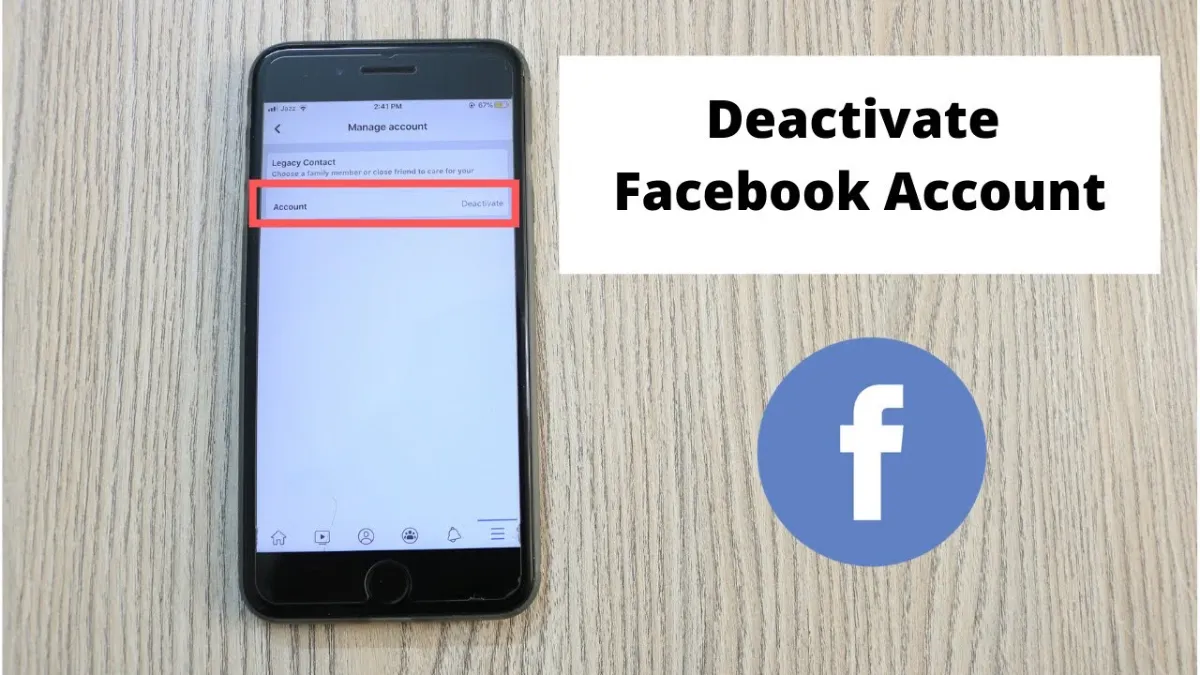
The process of deactivating Facebook on iPhone is straightforward. Begin by opening the Facebook app and tapping the three horizontal lines in the bottom-right corner to access the menu. Scroll down and tap “Settings & Privacy,” then select “Account Settings.” Under the “Security” section, you’ll find the option to deactivate your account.
Facebook will ask for a reason for deactivating, and you can choose an appropriate option. Additionally, you can opt out of receiving any emails during the deactivation period. Once completed, Facebook will confirm that your account is deactivated and inform you that you can return by simply logging in again at any time. This temporary solution allows you to take a break without losing any data permanently.
What Happens After Deactivating Facebook on iPhone?
When you deactivate your Facebook account on iPhone, several changes occur that affect your profile and interactions on the platform. Here’s what you can expect after taking a break from Facebook.
Impact on Your Profile
Once you deactivate your Facebook account on iPhone, your profile, posts, and photos will no longer be visible to other users. This means your friends won’t be able to interact with your content, like, comment, or tag you. Your name will still appear in the friends’ list of people you’ve connected with, but it won’t be clickable, and your profile won’t show up in search results. Essentially, your account becomes invisible to others, but the data remains stored by Facebook.
Notifications and Messages
After deactivating your account, Facebook will stop sending you notifications. This includes updates, messages, or any other activity related to your account. However, any messages you have previously sent will remain in your friends’ inboxes. While you will not receive notifications, others can still see and interact with your messages, but you will be unable to respond until you reactivate your account.
Reactivation
One of the advantages of deactivating your Facebook account is that you can reactivate it whenever you wish. Simply logging back into Facebook will restore your profile and all of your content. This means all your posts, photos, and interactions will be reactivated, and you’ll return to Facebook exactly where you left off. It’s a temporary solution that allows you to step away without losing your data permanently.
Major Differences Between Deactivating and Deleting Facebook Account
Before deciding whether to deactivate or delete your Facebook account, it’s important to understand the key differences between the two options:
Deactivation:
- Temporarily disables your Facebook account.
- Your profile, posts, and photos become invisible to others, but your data remains intact.
- You can reactivate your account at any time by simply logging back in.
- Your messages and interactions remain stored, but you won’t receive notifications or updates.
Deletion:
- Permanently removes your Facebook account and all associated data from Facebook’s servers.
- All your posts, photos, messages, and other information will be permanently erased.
- Once deleted, there’s no way to recover your account or data.
- If you wish to return to Facebook, you will need to create a new account, as the old one is gone for good.
Choosing between deactivation and deletion depends on whether you want to take a temporary break or permanently erase your data. Deactivation allows for a flexible return, while deletion is irreversible.
How to Temporarily Disable Facebook Notifications on iPhone?
If you want to take a break from Facebook without fully deactivating your account, you can temporarily disable notifications to reduce distractions. To do this, open the Facebook app on your iPhone and tap the three horizontal lines in the bottom-right corner to access the menu. From there, tap on “Settings & Privacy” and then select “Settings.”
Once in the settings menu, scroll down to find the “Notifications” section. Here, you’ll be able to choose which types of notifications you want to turn off. You can disable notifications for various activities such as comments, friend requests, and event invitations, allowing you to enjoy a quieter experience on Facebook without having to log out or deactivate your account entirely.
Disabling notifications is an effective way to minimize interruptions while still retaining access to your Facebook account whenever you want to check it. This option offers a flexible solution for those looking to take a break from social media.
Steps to Reactivate Your Facebook Account
Reactivating your Facebook account on iPhone is quick and easy. Just follow these steps:
- Open the Facebook app on your iPhone.
- Enter your username and password in the login fields.
- Log in to your account, and your profile will be restored to its previous state.
- All your posts, photos, and information will become visible once again, just as it was before deactivation.
Once you log in, you’ll regain full access to your profile, allowing you to interact with friends, view updates, and receive notifications. Deactivation is temporary, so logging back in restores everything, enabling you to continue where you left off. This makes it easy to take breaks from Facebook without losing your content or connections.
When Should You Consider Deactivating Your Facebook Account?
There are several reasons why you might want to deactivate your Facebook account. Here are some of the most common:
- Mental Health Breaks: If you find that social media is negatively affecting your mental well-being, taking a break from Facebook can provide some much-needed relief. Deactivating your account temporarily allows you to step back and focus on your mental health without the constant pressure of social media engagement.
- Privacy Concerns: If you’re worried about your personal data being shared or exposed, deactivating your Facebook account is a good way to protect your privacy. By taking this step, you ensure that your profile and activity are hidden from others. Additionally, using privacy tools like Whoer can further secure your browsing and keep your online presence more anonymous.
- Time Management: If you realize that Facebook is consuming too much of your time and affecting your productivity, deactivating your account for a while can help you regain focus. A temporary break allows you to reconnect with more important aspects of your life without distractions.
Final Thoughts
In conclusion, deactivating Facebook on your iPhone is an easy and effective way to take a break without permanently losing your data. Whether it’s for mental health, privacy concerns, or simply reducing distractions, deactivating your account allows you to step away from social media while keeping your information intact. If you prefer a temporary break, you can also disable notifications to minimize interruptions.
Following the steps mentioned above, you can easily deactivate your account or choose to disable notifications for a quieter experience. If you decide to return, reactivating your account is as simple as logging in again, giving you the flexibility to return whenever you’re ready.
FAQ’s
How do I deactivate my Facebook account on iPhone?
To deactivate your Facebook account on iPhone, open the Facebook app, go to Settings, select “Account Settings,” tap “Security,” and choose “Deactivate Account.”
Will Facebook delete my photos if I deactivate my account?
No, deactivating your account does not delete your photos or data. Your content remains on Facebook’s servers and can be restored once you reactivate your account.
How long can I keep my Facebook account deactivated?
You can keep your Facebook account deactivated indefinitely. There is no time limit, and you can reactivate it whenever you choose by logging back in.
Can I deactivate Facebook without deleting my data?
Yes, deactivating your account temporarily suspends it but does not delete any of your data. All your posts and photos remain stored on Facebook.
Can I reactivate my Facebook account from my iPhone?
Yes, you can easily reactivate your account by logging back into Facebook on the app or website, and all your content will be restored.
Does deactivating Facebook stop my notifications?
Yes, when you deactivate your account, you stop receiving Facebook notifications, including updates and messages.

Happy
0 %

Sad
0 %

Excited
0 %

Sleepy
0 %

Angry
0 %

Surprise
0 %
 0
0
 0
0