Social Media Image Sizes for Every Network And Free Ready-Made Templates
Read Time:4 Minute, 34 Second
Let’s be honest: nothing kills a good social post faster than a blurry, awkwardly cropped image. You spend time crafting the perfect caption, you hit “post,” and then—boom—your photo looks like it was uploaded in 2009. Every social platform has its own set of image dimensions, and they’re constantly shifting. What worked for Instagram last year may now look out of place, and LinkedIn’s banner sizes seem to change every time you log in.
If you’re tired of second-guessing your uploads, you’re not alone. As someone who’s spent far too much time tweaking designs and resizing the same picture five different ways, I get it. The good news is, you don’t have to memorize every pixel dimension or spend hours resizing. In this guide, I’ve gathered the most up-to-date image sizes for all major platforms—and included free templates to make your life easier.
Why the Right Image Sizes Matter
The difference between a crisp, well-framed post and a fuzzy, cropped one isn’t just visual—it’s engagement. Social feeds are crowded, and people scroll fast. An image that displays correctly and takes up the right amount of space has a better shot at grabbing attention On Instagram, for example, taller portrait posts (4:5 ratio) stand out more because they occupy more of the screen and to create these Instagram posts you can also use an Instagram post maker. And on YouTube, a properly sized thumbnail can be the deciding factor between a click and a pass.
I’ve seen this firsthand with client accounts: the same graphic, resized correctly for each platform, consistently outperforms a “one-size-fits-all” approach.
Facebook Image Sizes
- Profile Picture: 170 × 170 px
- Cover Photo: 851 × 315 px
- Feed Image: 1200 × 630 px
- Stories: 1080 × 1920 px
Pro tip: Keep the most important parts of your cover photo centered. Facebook crops differently on desktop and mobile, so a perfectly aligned logo on your laptop might disappear on someone’s phone.
Instagram Image Sizes
- Profile Picture: 320 × 320 px
- Square Posts: 1080 × 1080 px
- Portrait Posts: 1080 × 1350 px (4:5 ratio)
- Landscape Posts: 1080 × 566 px
- Stories and Reels: 1080 × 1920 px
Portrait posts (4:5) generally get better engagement—they’re taller and take up more space in the feed. For Stories, avoid putting text too close to the bottom; Instagram’s interface will cover it.
Twitter (X) Image Sizes
- Profile Picture: 400 × 400 px
- Header Image: 1500 × 500 px
- In-Feed Images: 1200 × 675 px
Twitter headers are tricky. They look different on desktop and mobile, so always preview your header on both before finalizing.
LinkedIn Image Sizes
- Profile Picture: 400 × 400 px
- Background Banner: 1584 × 396 px
- Shared Images: 1200 × 627 px
- Company Logo: 300 × 300 px
LinkedIn crops aggressively on smaller screens, so keep important visuals (like your company name or slogan) in the center safe zone.
Pinterest Image Sizes
- Pins: 1000 × 1500 px (2:3 ratio is ideal)
- Profile Picture: 165 × 165 px
- Board Covers: 600 × 600 px
Vertical pins dominate Pinterest. If you’re designing something for this platform, go tall and narrow to make your posts stand out.
TikTok & YouTube Image Sizes
TikTok
- Video Covers: 1080 × 1920 px (match your video dimensions).
- Use bold text centered on your cover to avoid TikTok’s icons and buttons.
YouTube
- Thumbnails: 1280 × 720 px (16:9 ratio)
- Channel Art: 2560 × 1440 px (safe area: 1546 × 423 px)
- Profile Picture: 800 × 800 px
YouTube channel art is notorious for looking perfect on one device and totally off on another. Stick to the safe area to keep your logo and text visible everywhere.
Save Time With Free Templates and Tools
Remembering all these sizes is a headache. That’s where free templates come in. Canva, Figma, and similar tools already have these dimensions built in—you just select the platform and start designing.
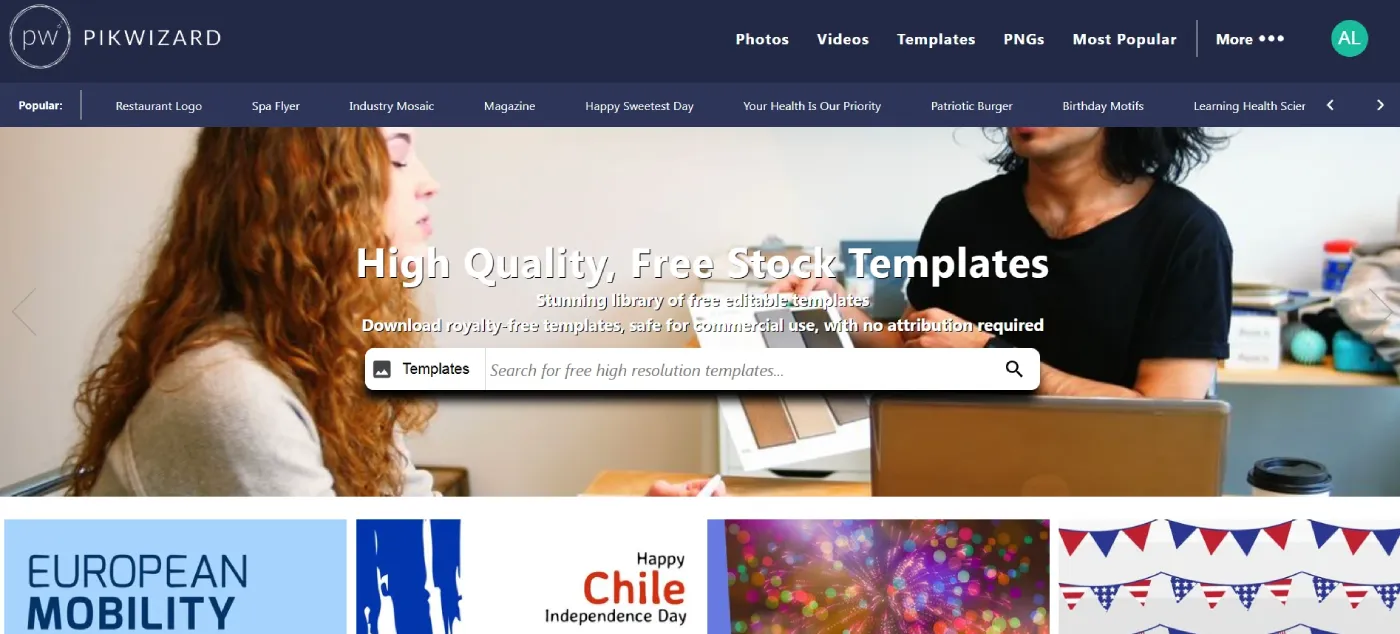
But before you even get to templates, you need great images. I can recommend Pikwizard free images and videos library as one of my go-to sites for high-quality free stock photos and transparent PNGs. You can even edit some images directly on their site without fancy software. Combine those visuals with a Canva template, and you’ve got professional-looking graphics in minutes.
Extra Tips to Keep Your Visuals Sharp
- Stick to two or three fonts and colors to build brand consistency.
- Always preview your graphics on mobile—most people won’t see your post on a desktop.
- Don’t overload images with text. Short, clear messages work better.
- Compress your images with tools like TinyPNG or Squoosh so your posts load quickly without losing quality.
Staying on top of image sizes isn’t glamorous, but it’s one of those details that sets polished content apart from the rest. The right dimensions keep your visuals crisp, your message clear, and your brand looking professional across every platform.
And thanks to free resources like Pikwizard for photos and Canva for templates, you don’t need to be a designer—or even pay for expensive tools—to get it right. Once you’ve got the correct sizes saved, creating great-looking content becomes faster and a whole lot less frustrating.
Your followers might not consciously notice perfect sizing, but they’ll definitely notice when something looks off. Now you’ve got everything you need to make sure your social posts always look their best.

Happy
0 %

Sad
0 %

Excited
0 %

Sleepy
0 %

Angry
0 %

Surprise
0 %
 0
0
 0
0